
Desktop app guide
How to use the app, step by step, with its settings and the update check at the end. For installing it see the README.

The app opens on a simple start screen: the logo, the URL box with its Paste button, Load and Settings. (To open on the full window instead, turn off Open with the simple view under Settings → Start screen.) From there:
Paste the series' URL into the box (or use its Paste button). The series loads on its own once you paste or stop typing; Load or Enter loads it at once. The window then turns into the full app, with the URL box at the top and the chapter list below it:
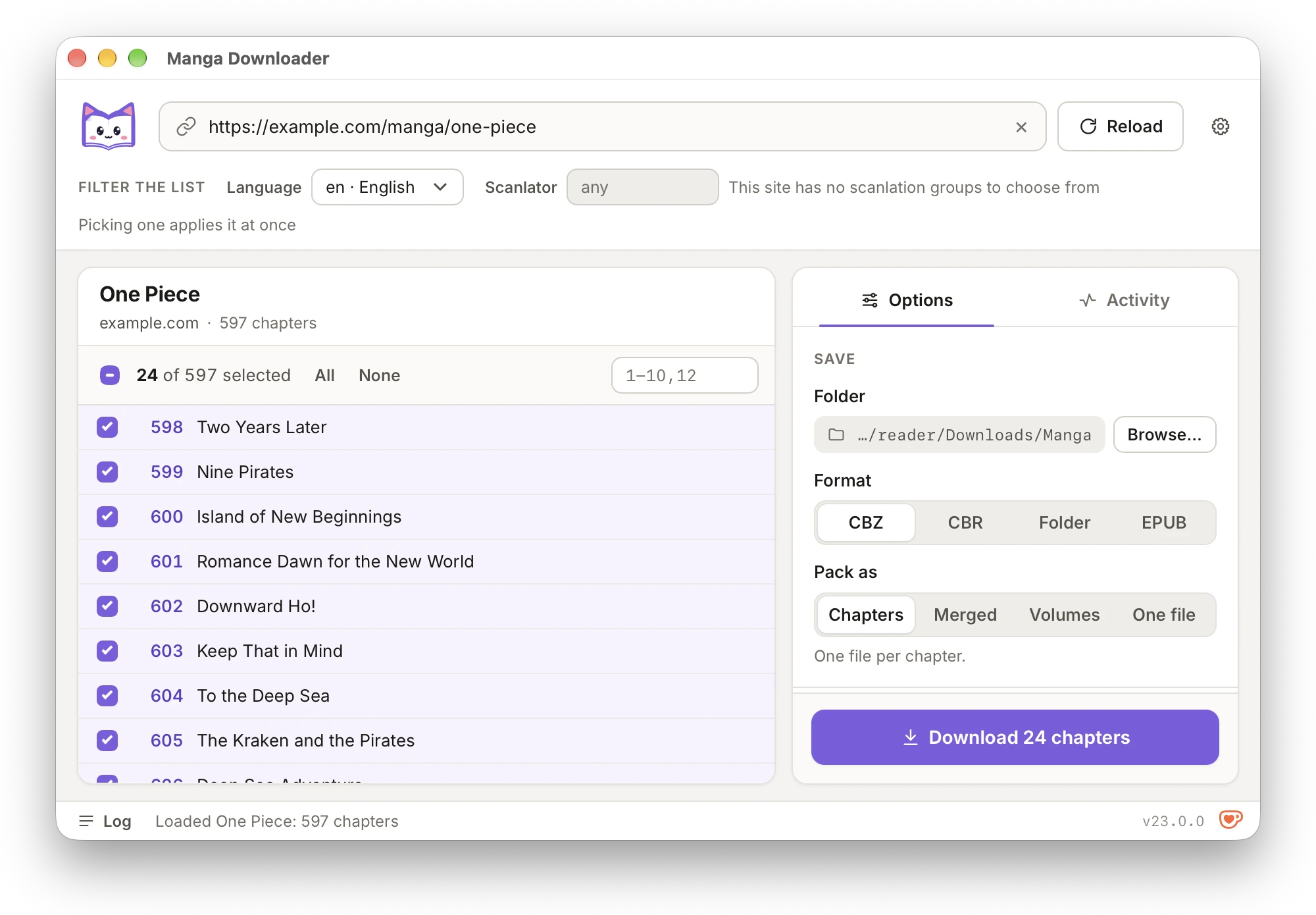
Pick chapters in the list. Type a range such as
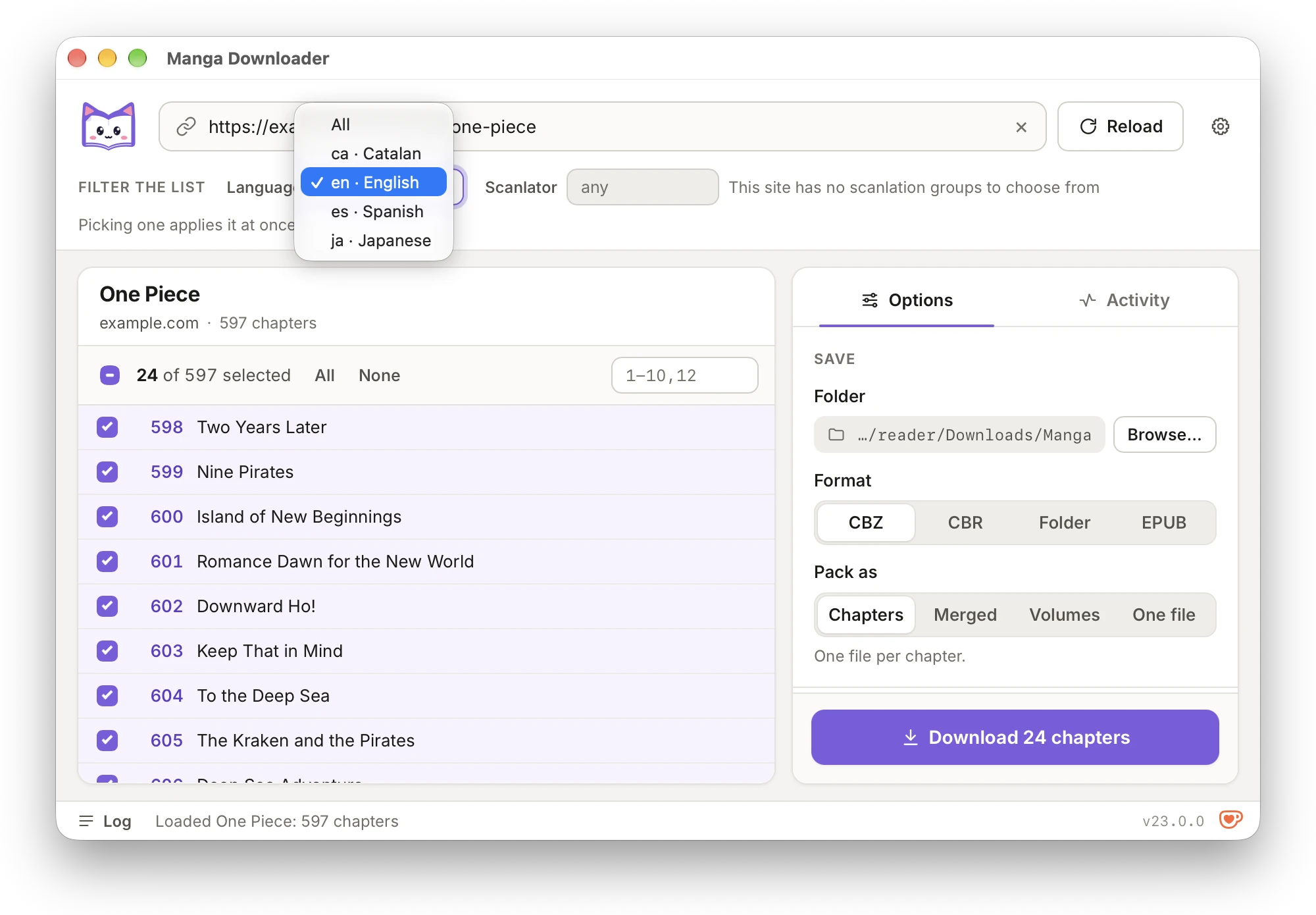
1-10,12and press Enter (or the + in the box), Shift+click to select a span, or use All and None. The arrow keys and Space work too. Locked chapters (paid or members-only) show a lock and can't be selected.Choose a language and a scanlation group when the site offers them. The selectors tell you when a series has none, and picking one reloads the chapter list. Sites that support it also offer All.
Set the options in the Options tab: the folder the files go to (the app creates it if it's missing), Skip existing files (chapters already in the folder aren't downloaded again), the format (CBZ, CBR, Folder or EPUB; EPUB adds a Reading direction) and Pack as: Chapters (a file each), Merged (a chapter's parts in one file), Volumes (a file per volume) or One file (everything together). Under Pages, Convert to JPEG ticks AVIF (on by default, and always on for EPUB, since readers can't show it) and WebP, and Compress pages saves a page as JPEG when that makes it smaller. Skip pages drops positions from every chapter (
2, or-1for the last page). Under Advanced are the Filename template, the JPEG quality of every page saved as JPEG, and Show the browser window, which you rarely need: a site that needs the window opens it by itself.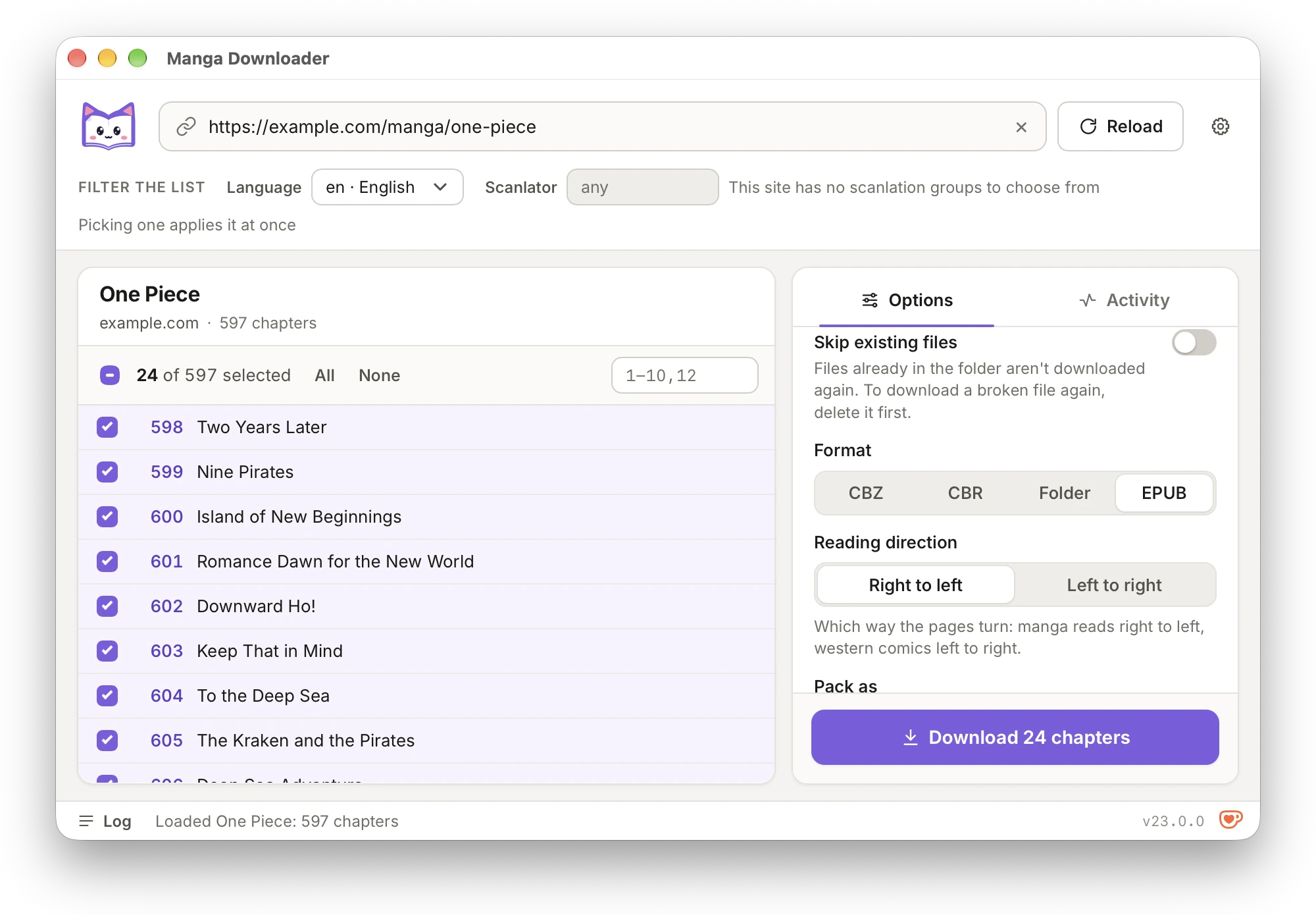
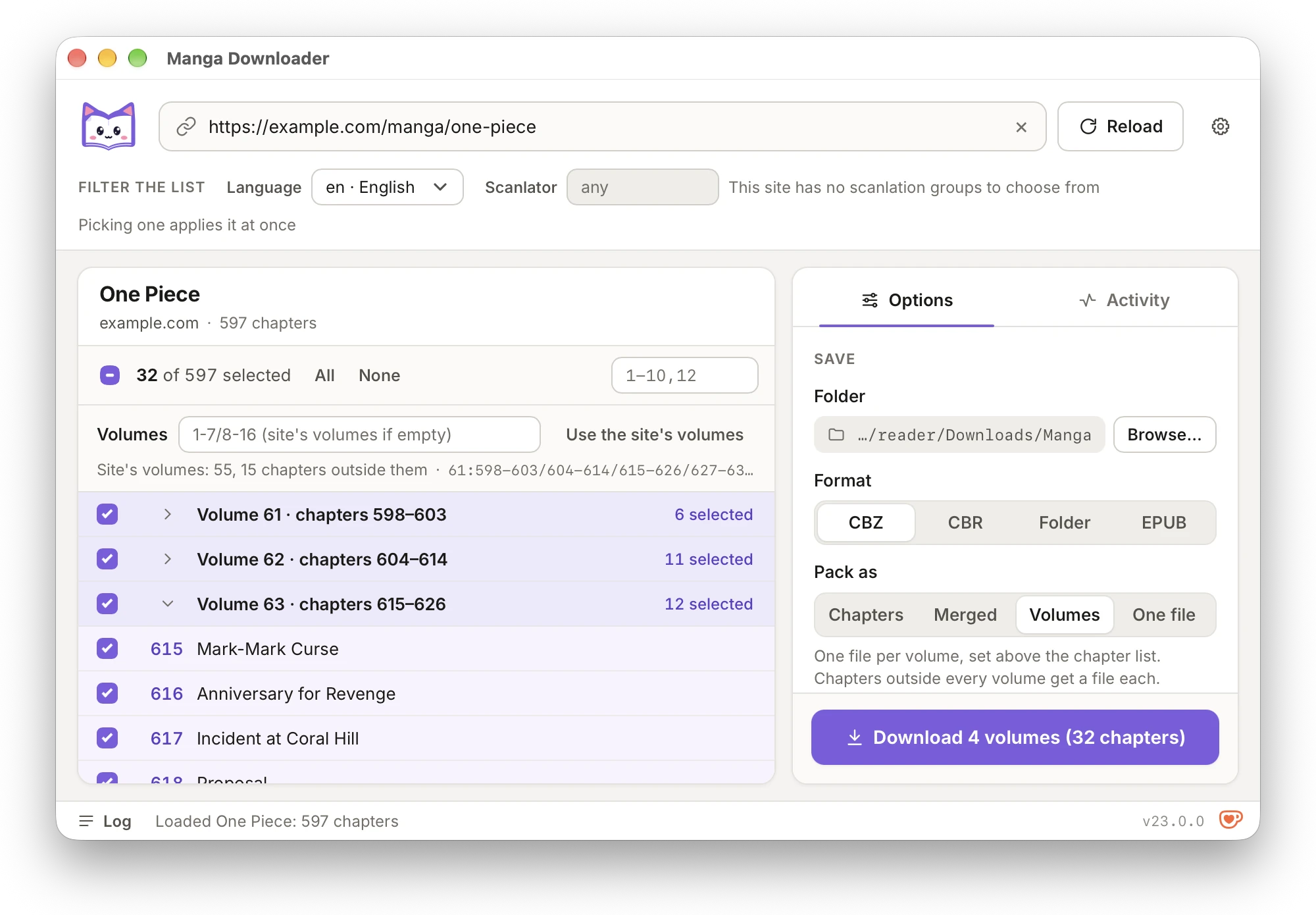
Pack as → Volumes adds a Volumes box above the chapter list. Left empty, it packs the site's own volumes; a line under it offers them as chapter ranges when they can be written that way, and the list is grouped by volume.
Pack as → Merged packs a chapter's parts (19-① and 19-②) into one file named after the chapter, and leaves the chapters without parts as one file each.
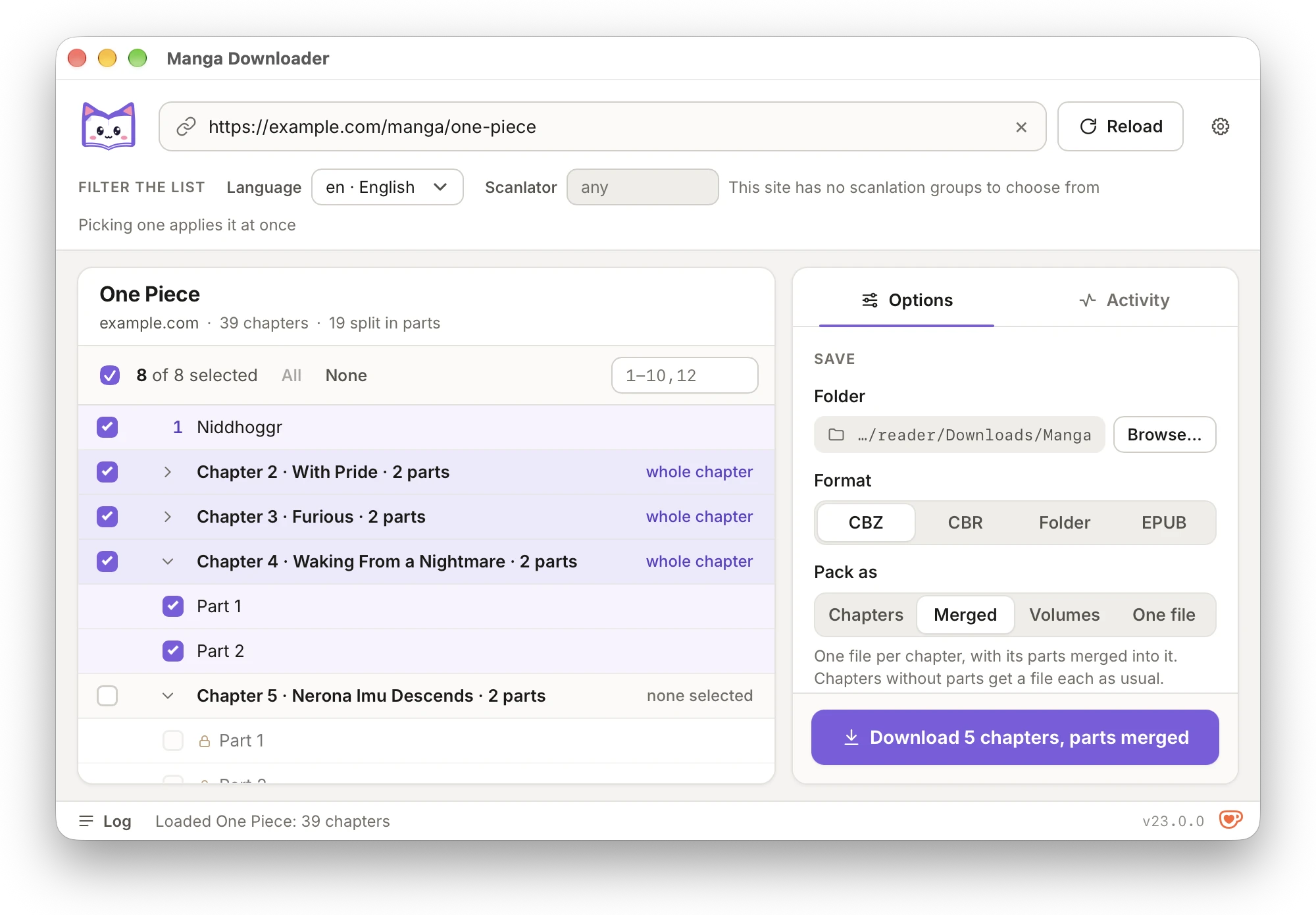
When a site's browser window needs you (a captcha or a puzzle to solve), an alert says so, with Show the browser window to bring it to the front and Dismiss to hide the alert.
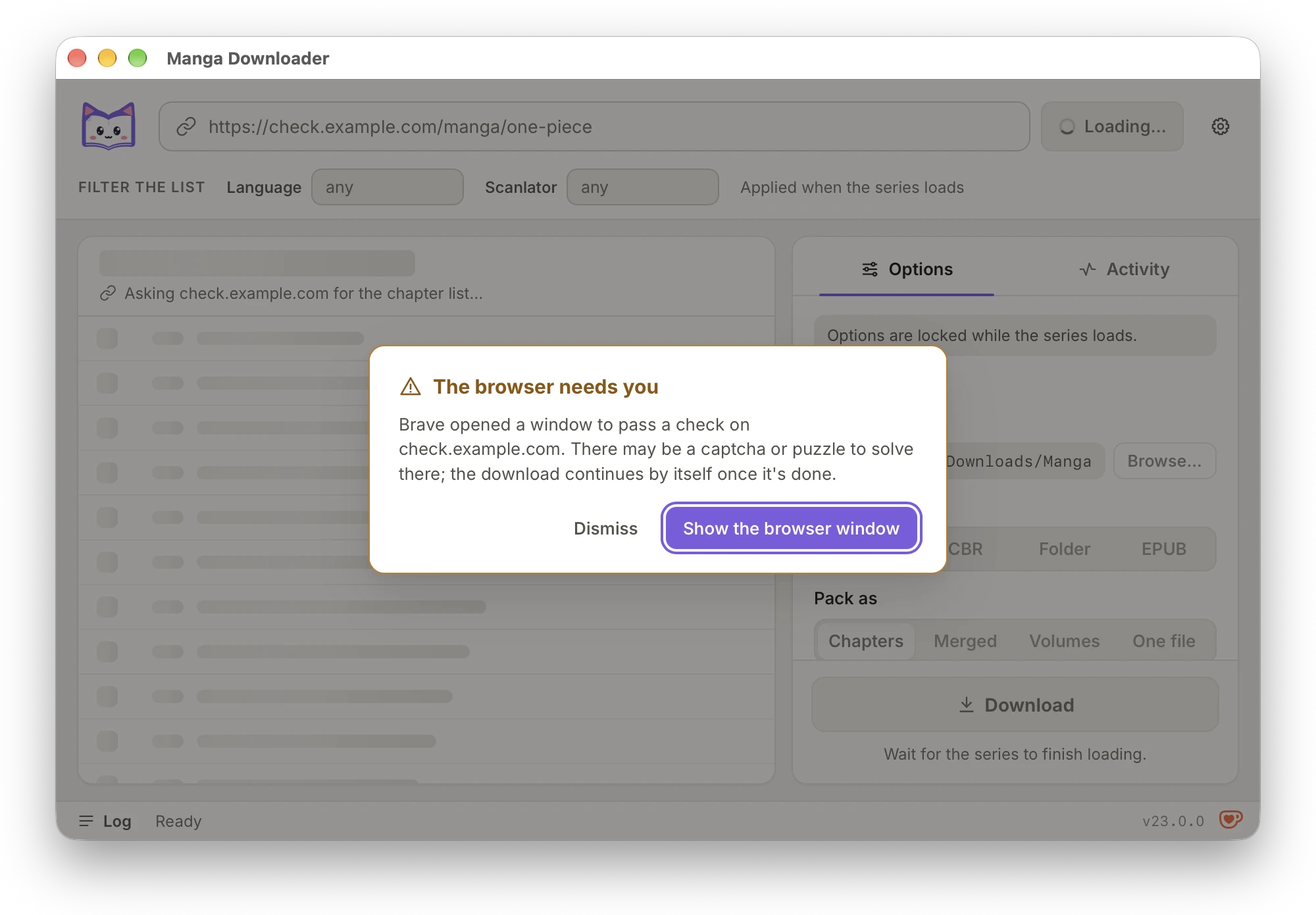
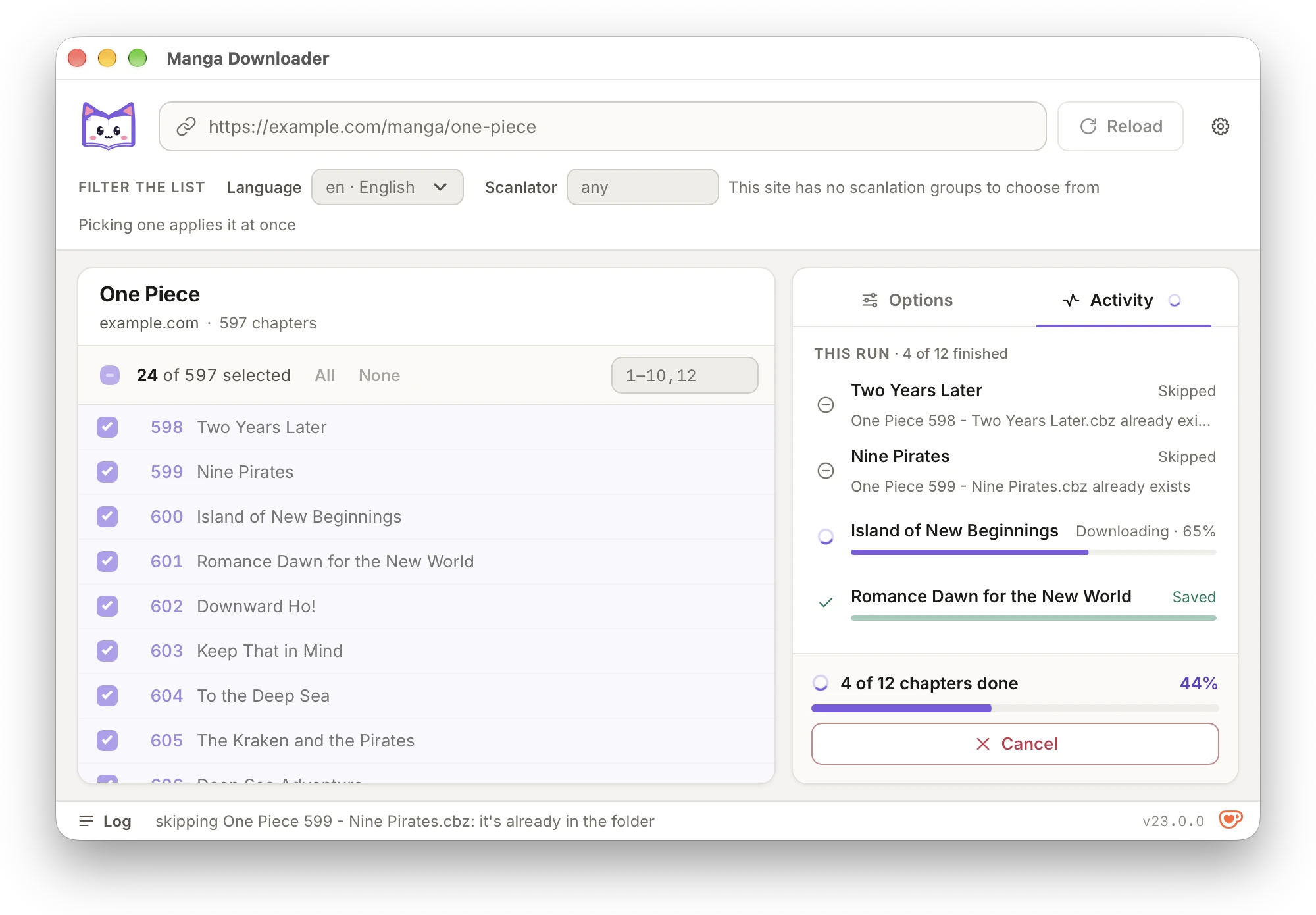
Press Download. The Activity tab shows each chapter as it's fetched and packed. Cancel lets the chapters already downloading finish, and starts no new ones. A log is one click away in the status bar, and its Clear button empties it without touching a download that's running.
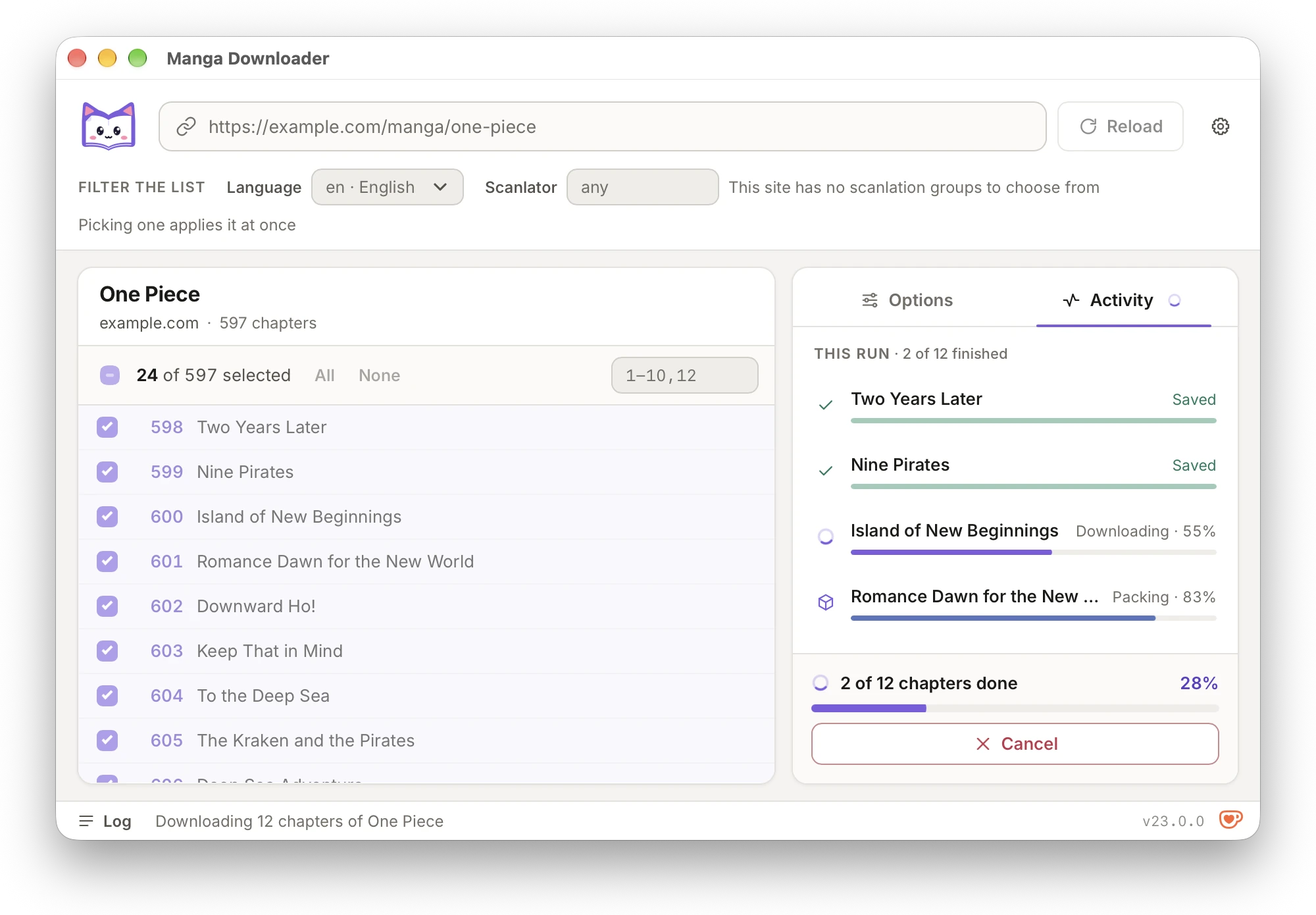
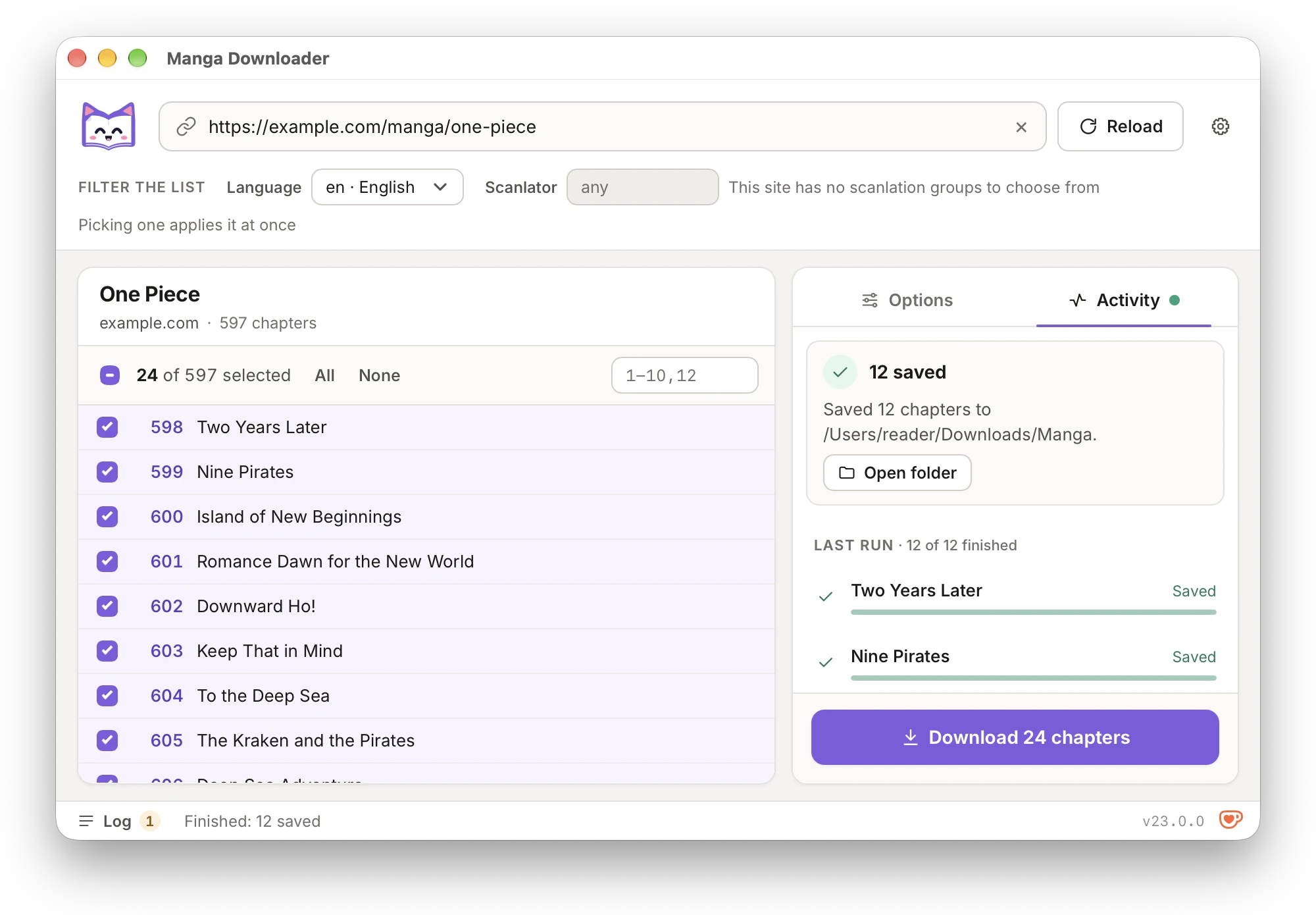
When it's done, the summary shows what was downloaded. Press Open folder to go straight to the files.
If a chapter fails, the summary names it and says why; the other chapters are still saved.
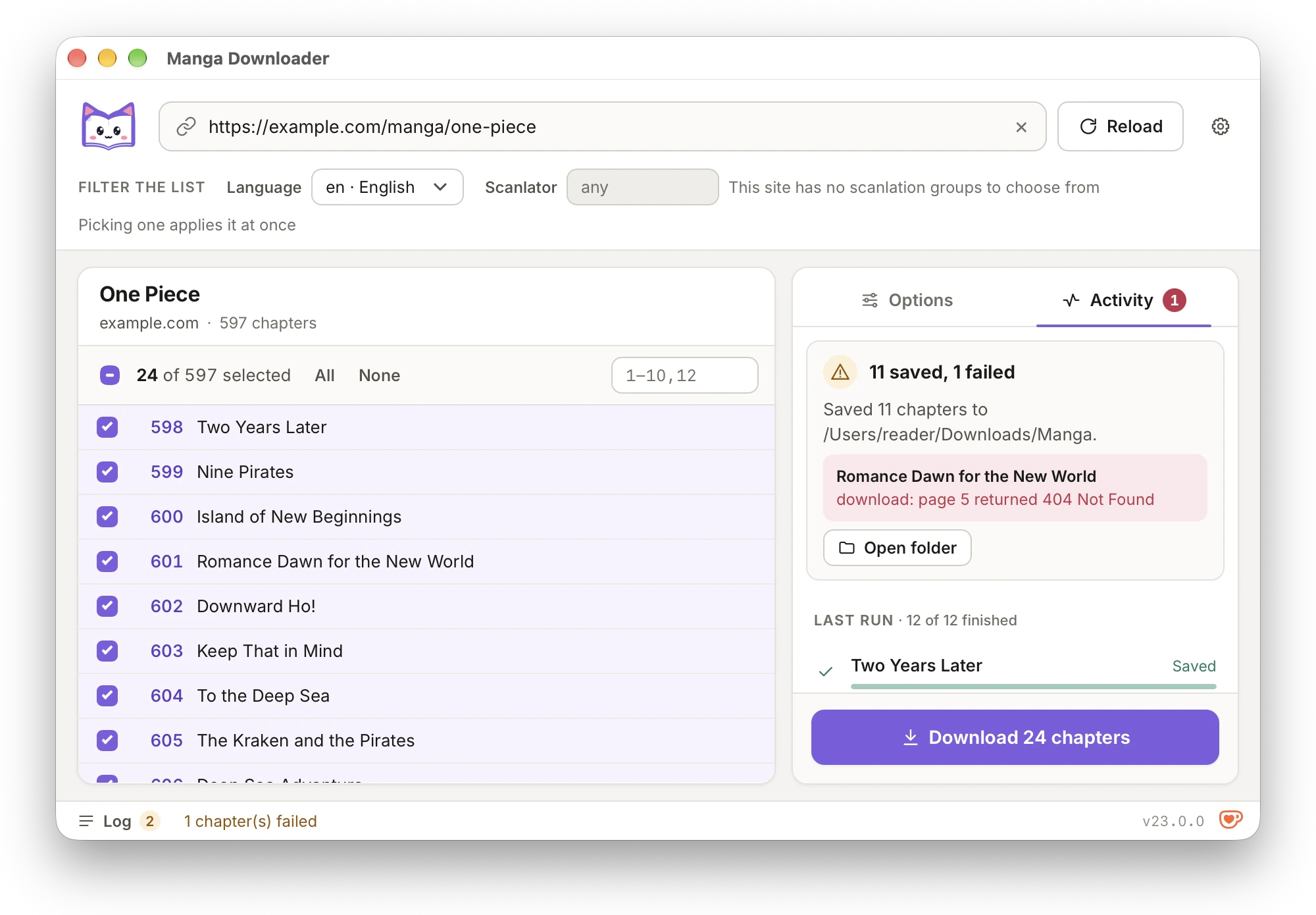
With Skip existing files, a chapter whose file is already in the folder is left out before anything is fetched: it shows as skipped in the Activity tab, and the summary says how many were there.


The app saves your options to gui.json in the manga-downloader folder of
your user config folder (~/.config on Linux, ~/Library/Application Support
on macOS, %AppData% on Windows), so they're still there the next time you
open it. Files go to your Downloads folder (or your home folder, if there isn't
one) unless you choose another folder.
The app downloads up to five chapters at once, ten pages each, and retries a failed page once, the command line's defaults; there's no setting for them. Sites whose image servers limit the request rate get lower limits on their own.
Downloads go through the proxy in HTTPS_PROXY or HTTP_PROXY when the app is
started with one set, as on the command line.
Settings and the update check
The gear icon (below the URL box on the start screen, in the header of the full app) or Ctrl+, / ⌘, opens Settings: the app's language (English, Español, Català or 日本語), whether it opens with the simple start screen, and whether it checks for new versions at startup.

When a newer release is out, a yellow ! next to the version in the status bar
links to it. If the app was installed by the Windows installer or the Linux
install.sh, or on macOS sits in a folder you can write to, the ! opens a
dialog instead that updates the app in one click, after checking the download
against the release's checksums. The Homebrew cask's copy keeps the link, since
brew upgrade updates it.

The check asks our update server for the latest release, telling it the program, its version, your OS and architecture, and the app's language (plus your system's language when the app follows it). If our server doesn't answer, the app asks GitHub directly. The server runs on Cloudflare, which sees your IP address like any web host; only a hash of it, salted with a key deleted monthly, is kept, to count monthly users.